

Demontie/mcp-google-sheets
This project provides a Model Context Protocol (MCP) server that enables reading and writing data to Google Sheets. It uses the Google Sheets API to interact with spreadsheets and provides tools for data synchronization.
MCP Google Sheets Integration
This project provides a Model Context Protocol (MCP) server that enables reading and writing data to Google Sheets. It uses the Google Sheets API to interact with spreadsheets and provides tools for data synchronization.
Table of Contents
Features
Google Sheets Tools
-
gsheets_read
- Description: Read data from a Google Sheet
- Parameters:
spreadsheetId(string, required): The ID of the spreadsheet to readrange(string, optional, default: "Página1"): The range of cells to read
- Returns: The data from the specified range in the spreadsheet
-
gsheets_write
- Description: Write data to a Google Sheet
- Parameters:
spreadsheetId(string, required): The ID of the spreadsheet to write tovalues(object, required): The data to write, containing:product(string): Product namevalue(string): Product valuedate(string): Date of the entry
range(string, optional, default: "Página1"): The range where to write the data
- Returns: Confirmation of the write operation
Installation and Usage
Prerequisites
- Node.js (version 23 or higher)
- Google Sheets API credentials
- Cursor IDE
Setup
- Clone the repository
- Install dependencies:
npm install - Configure your Google Sheets API credentials
- Cursor Configuration
Configure your Google Sheets API credentials
- Go to the Google Cloud Console
- Create a new project or select an existing one
- Enable the Google Sheets API:
- In the left sidebar, click on "APIs & Services" > "Library"
- Search for "Google Sheets API"
- Click on it and then click "Enable"
- Create credentials:
- In the left sidebar, click on "APIs & Services" > "Credentials"
- Click "Create Credentials" and select "Service Account"
- Fill in the service account details and click "Create and Continue"
- For the role, select "Editor" or "Owner" depending on your needs
- Click "Done"
- Generate and download the JSON key:
- In the service account list, click on the newly created account
- Go to the "Keys" tab
- Click "Add Key" > "Create new key"
- Choose JSON format and click "Create"
- The key file will be downloaded automatically
- Share your Google Sheet:
- Open your Google Sheet
- Click the "Share" button
- Add the service account email (found in the JSON key file) as an editor
- Add credentials.json to the project root
Cursor Configuration
To configure this MCP server with Cursor:
- Open Cursor
- Press:
- Windows/Linux:
Ctrl + Shift + P - macOS:
Cmd + Shift + P
- Windows/Linux:
- Type "Configure MCP Server" and select it
- Add the appropriate configuration based on your setup:
For Windows (without WSL) or Linux:
{
  "mcpServers": {
    "google-sheets": {
      "command": "node",
      "args": ["ABSOLUTE_PATH_TO_PROJECT/src/index.ts"]
    }
  }
}
For WSL Users:
{
  "mcpServers": {
    "google-sheets": {
      "command": "wsl.exe",
      "args": [
        "-e",
        "ABSOLUTE_PATH_TO_NODE/.nvm/versions/node/v22.15.2/bin/node",
        "ABSOLUTE_PATH_TO_PROJECT/src/index.ts"
      ]
    }
  }
}
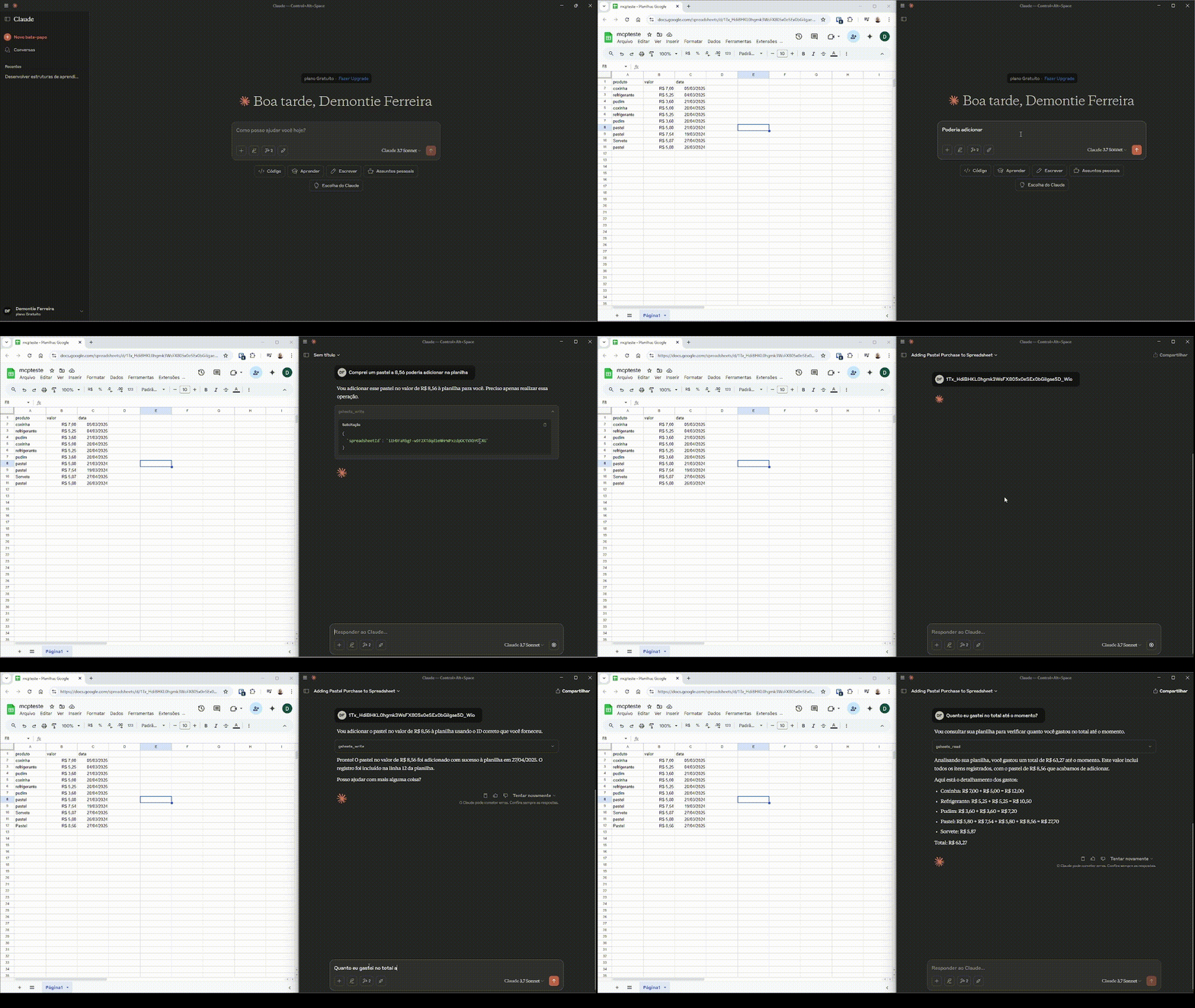
Demo
License
This project is licensed under the ISC License.

Recommend MCP Servers 💡

ClinicalTrials-mcp-server
Enables AI assistants to search and access ClinicalTrials.gov data, providing tools for trial search, metadata retrieval, and CSV management.


git-mcp-go
A Model Context Protocol (MCP) server for Git repository interaction and automation, written in Go.


sheffler/mcp-server-lims
An MCP server for Laboratory Information Management System (LIMS) enabling AI agents to manage lab workflow data and interact with simulated instruments

theishangoswami/exa-mcp-server
An MCP server enabling AI assistants like Claude to use the Exa AI Search API for web searches

Serena
A powerful MCP toolkit for coding, providing semantic retrieval and editing capabilities - the IDE for your agent

mcp-workflowy
A Model Context Protocol (MCP) server for interacting with Workflowy