

PaymentsNZ MCP Server
How to Build
- Install Node.js version 22 or greater. Check version with
node --version. - Run
cd sdk && npm install && cd ../mcp-server && npm installto build the SDK and the server.
How to Run
If you are not familiar with how to setup MCP Servers with Claude Desktop, see this tutorial first.
Now add something like this to your Claude Desktop config:
{
  "mcpServers": {
    "PaymentsNZ": {
      "command": "node",
      "args": ["[YOUR-PATH-HERE]/paymentsnz-mcp-server/mcp-server/dist/index.js"],
      "env": {
        "ACCOUNT_AND_TRANSACTION_API_SPECIFICATION_LIB_ACCESS_TOKEN": "[YOUR-ACCESS-TOKEN-HERE]"
      }
    }
  }
}
A claude_desktop_config.json file is also provided as reference.
Make sure to set the path to the location where your MCP Server is stored as well as the access token you got after authenticating.
How to Get Access Token
- Go to https://pnz-app.azurewebsites.net/
- Go to any endpoint such as https://pnz-app.azurewebsites.net/#/typescript/api-endpoints/statements/get-account-statement
- Click on
GET AUTH TOKENon the top-right of the page and wait for a window to pop-up for consent. - Enter
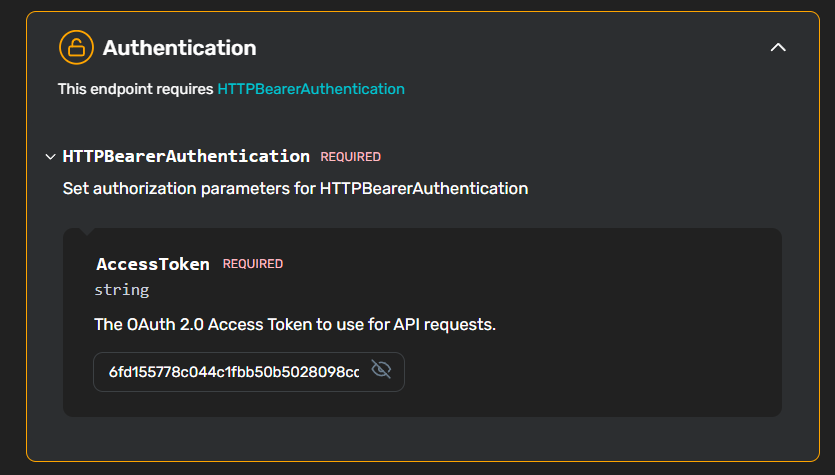
usernameandpasswordand approve everything - The access token should now be visible in the Authentication UI(See screenshot below). You can now copy it into your environment variables in your
claude_desktop_config.jsonfile.
NOTE: The access token does not last more than an hour. Please make sure that it is used in a timely manner.

Recommend MCP Servers 💡

CryptoPortfolioMCP
An MCP server for tracking and managing cryptocurrency portfolio allocations.

chainlink-feeds-mcp
An MCP server that provides real-time access to Chainlink's decentralized on-chain price feeds.


monad-bridge-mcp-server
A lightweight MCP server enabling bridging between Ethereum Sepolia and Monad Testnet using Wormhole bridge

@xiaok/etherscan-mcp
A dynamic MCP server for interacting with Etherscan's API and services

cashfree-mcp
Cashfree MCP server allows AI tools and agents to integrate with Cashfree APIs (Payment Gateway, Payouts, and SecureID) using the Model Context Protocol (MCP).

Nasdaq Data Link MCP Server
A Model Context Protocol (MCP) server that provides large language models with access to Nasdaq Data Link's extensive financial and economic datasets.