

🧾 Odoo Accounting MCP Server
This is a simplified, non-production-ready Model Context Protocol (MCP) server designed for experimental integration with Odoo Accounting via XML-RPC. Specifically tailored for use with Claude Desktop, this project focuses on enabling AI tools to query and analyze account journal entries for audit purposes. While it allows interaction with Odoo accounting data, its current scope is limited to this specific use case and is not intended for production environments. Future exploration might consider expanding to other accounting-related data, such as invoices, depending on the outcomes of the initial focus.
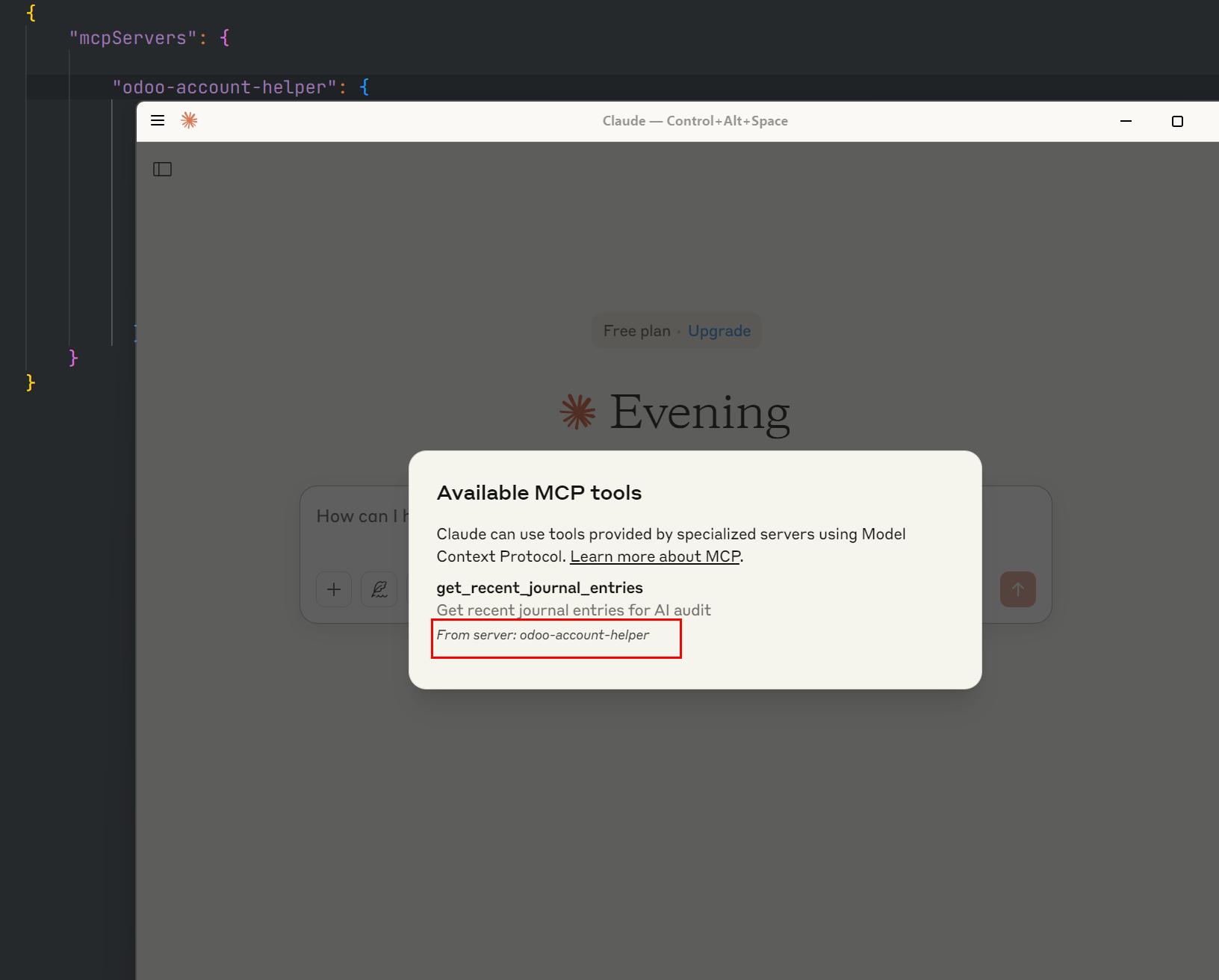
🔧 Example: Claude Detecting MCP Tool
🚀 Key Features
- Secure Odoo Connection: Establish a secure connection to your Odoo instance using environment variables or a dedicated configuration file.
- Accounting Data Tools: Provides specialized tools to efficiently search and retrieve relevant accounting information.
- Claude AI Ready: Fully compliant with the Model Context Protocol, ensuring smooth integration with Claude Desktop.
- RESTful API (via FastAPI): Offers a simple and robust FastAPI server for exposing RESTful endpoints.
- Flexible Configuration: Easily configure the server through Claude Desktop's configuration settings.
🛠️ Setup Guide
Follow these steps to set up and run the Odoo Accounting MCP Server:
1. Clone the Repository
git clone https://github.com/your-username/odoo-accounting-mcp.git
cd odoo-accounting-mcp
2. Configure Environment Variables
Create a .env file in the project's root directory and populate it with your Odoo connection details:
ODOO_URL=http://localhost:8069
ODOO_DB=your_db_name
ODOO_USERNAME=your_odoo_user_name
ODOO_PASSWORD=your_odoo_password
3. Set Up Virtual Environment
It's recommended to use a virtual environment to manage project dependencies:
python -m venv .venv
Activate it:
.\\.venv\\Scripts ctivate
4. Install Dependencies
Install the required Python packages from the requirements.txt file:
python -m pip install -r requirements.txt
5. Run the Server
Start the MCP server using the main Python script:
python main.py
The server will typically start and be accessible at http://localhost:8000.
⚙️ Claude Desktop Integration
You don't need to manually run the MCP server when using Claude Desktop. Instead, configure Claude Desktop to manage the server lifecycle.
Update your claude_desktop_config.json file with the following configuration (adjust the paths and Odoo credentials as necessary):
{
  "mcpServers": {
    "odoo": {
      "command": "python",
      "cwd": "D:/jeevan-projects/odoomcp/odoo_account_mcp",
      "args": ["main.py"],
      "env": {
        "ODOO_URL": "http://localhost:8069",
        "ODOO_DB": "your_db",
        "ODOO_USERNAME": "admin",
        "ODOO_PASSWORD": "your_password"
      }
    }
  }
}
Important Notes:
- Ensure the
cwdpath in the configuration points to the correct directory of yourodoo_account_mcpproject. - Replace the placeholder Odoo credentials with your actual Odoo instance details.
📜 License
This project is licensed under the MIT License.

Recommend MCP Servers 💡

tradingview-chart-mcp
An MCP server that fetches TradingView chart images based on ticker and interval, featuring advanced browser pooling for optimized concurrent performance.

frankfurtermcp
MCP server for Frankfurter API, providing currency exchange rate tools (latest, historical, conversion)
@bankless/onchain-mcp
Bringing the bankless onchain API to MCP


Chargebee AgentKit
Seamlessly integrate AI agents with Chargebee using AgentKit for smarter billing and subscription workflows.

0xanpham/my-crypto-mcp
A MCP server that fetches real-time cryptocurrency data from CoinMarketCap API for Claude Desktop.

shareseer-mcp-server
ShareSeer MCP Server - Access SEC filings and insider transactions via Claude